DAX stands for Data Analysis Expressions. It is a formula language used in Power BI for performing calculations and queries on data. It performs calculations that create new measure, new columns and even new tables.
Types of DAX Calculations in Power BI
- Calculated Columns
- Tables
- Measures
When we want to do our DAX Calculations we go to the Table view/Data view in our Power BI. Then we click on the Table tools to find and use the DAX Calculations to create a new column, new measure or a new table as shown below.

DAX In Power BI : How to add a new column
After we have clicked on the Table tools, we click on new column, we put a title to the table and then put a DAX function of what you want the new column to do. For Example, we want to get the sowing month out the sowing year, we’d click on new column, then put the title “sowing_month” then the equals sign the the DAX function “Format” it opens a bracket then you input the table name and sowing year, “MMMM”) then click on the commit mark or press enter. It creates a new column. Just as shown below.

The same goes for measures but measures won’t show on the table. Also, instead of the use of blank spaces, we use the underscore sign “_” for DAX in Power BI.
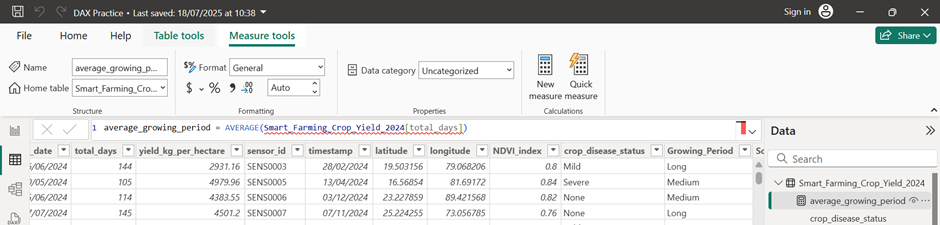
DAX In Power BI : Basic DAX Functions
- Aggregate Functions – SUM, AVERAGE, MAX, MIN, COUNT, DISTINCTCOUNT.
- Logical Functions – IF, SWITCH
- Text Functions – CONCATENATE, LEFT, RIGHT, UPPER, LOWER
- Date/Time Functions – TOADY(), NOW(), YEAR(), MONTH(), DATEDIF().